Mitel MiVoice Office / HX 250 (Mitel 5000-7000)
These instructions help you configure your Mitel MiVoice Office / Mitel HX / 250 / 5000-7000 phone system to work with TIM Plus. Contact your system maintainer if you are not familiar with the configuration of your PBX.
Support files
Ensure the following support files exist in the /config/ folder of the TIM Plus application:
Mitel 5000-7000.TDT
Mitel 5000-7000.TDS
Connection Type
TIM Plus establishes a TCP connection to this PBX.
Contents
Configuring the SMDR output
info
You may need to purchase a license to enable SMDR on this PBX. Please speak to your system maintainer if you are unsure.
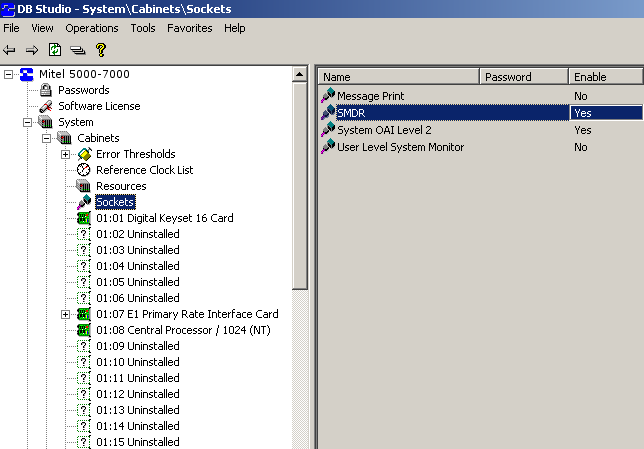
By default, the Mitel 5000-7000 has its SMDR output disabled. Follow the steps below to enable it:
- Log in to the Mitel DB Studio software.
- Click and expand the
Systemnode. - Click and expand the
Cabinetnode. - Select the
Socketsnode. - In the right-hand window, click on the SMDR parameter to set its enabled state to Yes.
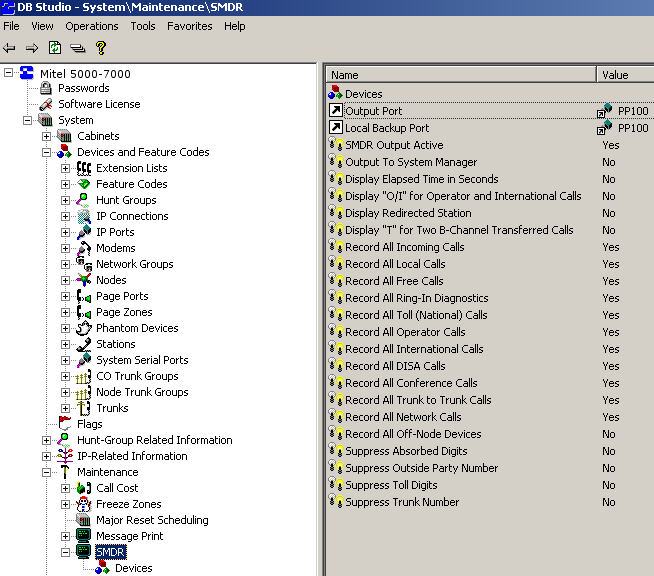
- Click and expand the
Systemicon. - Click and expand the
Maintenanceicon. - Click on the
SMDRicon. - On the right-hand side you will have the SMDR fields that need to be configured, as shown below:
Configuring TIM Plus
Follow the steps below to configure TIM Plus to connect to your Mitel MiVoice Office / Mitel HX / 250 / 5000-7000:
- Click on the
Directorytab. - If you don't have a site set up, press
Addand selectPBXfrom the drop-down menu. In the dialogue window, name your site and then selectAdd.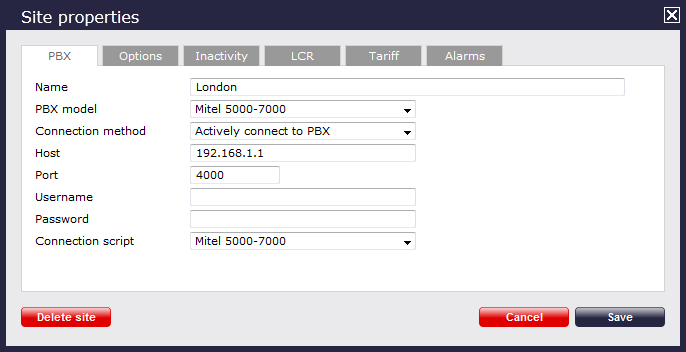
- In the Site Properties window, select Mitel 5000-7000 from the PBX model drop-down list.
- In the Connection method field, select Actively connect to PBX from the drop-down list.
- In the Host field, enter the IP address of your Mitel 5000-7000.
- In the Port field, enter 4000.
- Leave the Username and Password fields blank.
- In the Connection script field, select Mitel 5000-7000 from the drop-down list.
- Click on the
Savebutton to apply the settings.